
NetMirror Live TV: the channels and how to watch
Live channels in the app, from music and films to sport.

Besides films and series, the NetMirror app carries live TV channels: music, Bollywood films, kids’ shows, documentaries, news and sport. This guide covers where to find them, what’s in the line-up, and what to do when one goes quiet.
Where Live TV is
Live TV arrived in version 3.1.1 (see what changed), so update first if you don’t see it. On a phone, tap More in the bar at the bottom of the screen, then Live TV. On an Android TV or Firestick, choose More in the sidebar.
Live TV is part of the app only. The web player at net78.cc is for films and series, so on an iPhone or a computer you won’t find these channels. To get the app, see the Android APK or NetMirror on TV.
The channels
When we counted on 22 November 2026, Live TV had 66 channels, in these groups:
| Category | Channels |
|---|---|
| Entertainment | 36 |
| Sports | 11 |
| Movies | 7 |
| Music | 5 |
| Kids | 3 |
| Documentary | 2 |
| News | 2 |
| Total | 66 |
Among them are music channels like 9XM and 9X Jalwa, and film channels like B4U Movies and Goldmines Movies. The line-up is managed from NetMirror’s side, so it changes without an app update: channels get added, and ones that stop broadcasting are taken out. The number at the top of the Live TV screen is always the current count.
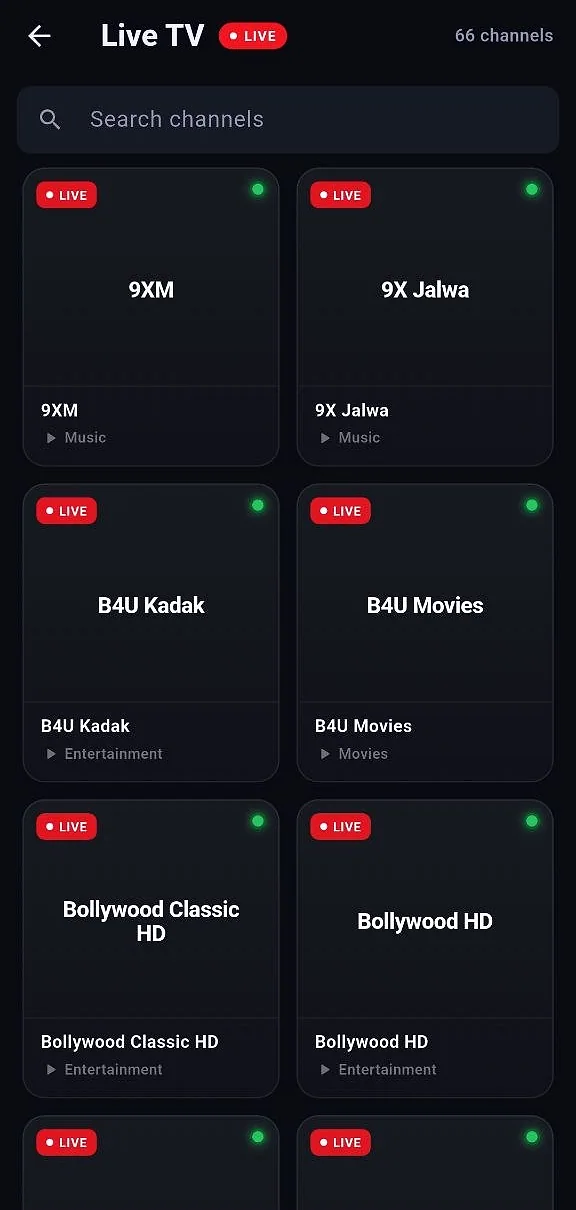
Finding a channel
Type part of a name into Search channels at the top of the list, for example “B4U”. Each channel card shows its category under the name, and a small dot in the corner:
- Green: the channel was working when NetMirror last checked it.
- Red: it was down at that check.
Channels that are working are listed first, so the top of the list is the place to start. The checks run on NetMirror’s side, and the app fetches the latest ones each time you open Live TV.
Watching and switching channels
Tap a channel to start it. The player shows a LIVE badge, and buttons at the bottom move to the previous or next channel, with your place in the list between them, such as “4 / 66”. That way you can flick through channels without going back to the list.
Quality starts on Auto, which adjusts to your connection. Some channels offer a choice of resolutions in the player’s Quality menu; others come in a single one, and the menu says so. On a slow or patchy connection, leave it on Auto.
When a channel won’t play
Each channel is a live stream from an outside source, and any one of them can drop out for a while. When that happens the player says the channel isn’t responding right now and offers two buttons:
- Retry tries the same channel again. Worth one go, since streams often come back within moments.
- Next moves on to the following channel.
If a channel stays down, look at its dot in the list. Red means it’s down for everyone, not only you, so try it again later. If every channel fails, the problem is more likely your connection. Change networks, from Wi-Fi to mobile data or back, and open Live TV again. And if Live TV doesn’t load at all, update the app: Live TV fixes came with version 3.1.1.