
How to download movies on NetMirror and watch offline
Save films and episodes in the app, then watch without internet.

The NetMirror app can save a film or an episode to your phone, so you can watch it on a flight, on a train with no signal, or without using your data. Here’s how it works, from choosing the file size to getting a download that stopped halfway going again.
Download a film or episode in the app
- Open the title. For a film, tap the download button next to Play. For a series, open the season and tap the download icon beside the episode you want.
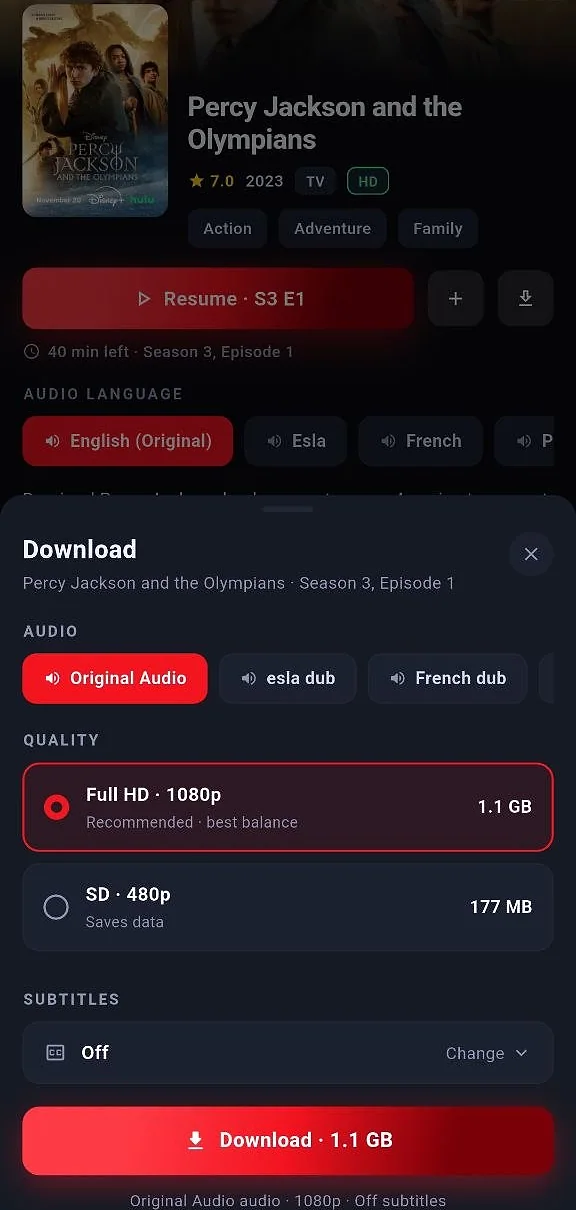
- A Download sheet opens. Under Audio, choose the version to save: Original Audio, or a dub such as Hindi when the title has one.
- Under Quality, choose a size. Every option shows how big the file will be.
- Under Subtitles, leave them off, pick one language, or take them all. They’re saved with the video.
- Tap Download. The button shows the total size, and a message tells you the download has started in the Downloads tab.
Which quality to pick
The sheet lists the qualities that title comes in, usually Full HD 1080p and SD 480p, sometimes others. In the example above, one episode was 1.1 GB in Full HD and 177 MB in SD, so the smaller copy took about a sixth of the space.
- Full HD 1080p looks best on a tablet, a laptop or a TV, and is the one the app recommends.
- SD 480p is labelled “Saves data”. On a phone screen it still looks fine, and it’s the one to choose on a phone that’s short of space or on a limited data pack.
Before you save a whole season, add it up. At the sizes above, ten episodes in Full HD would need about 11 GB free.
Find and watch your downloads
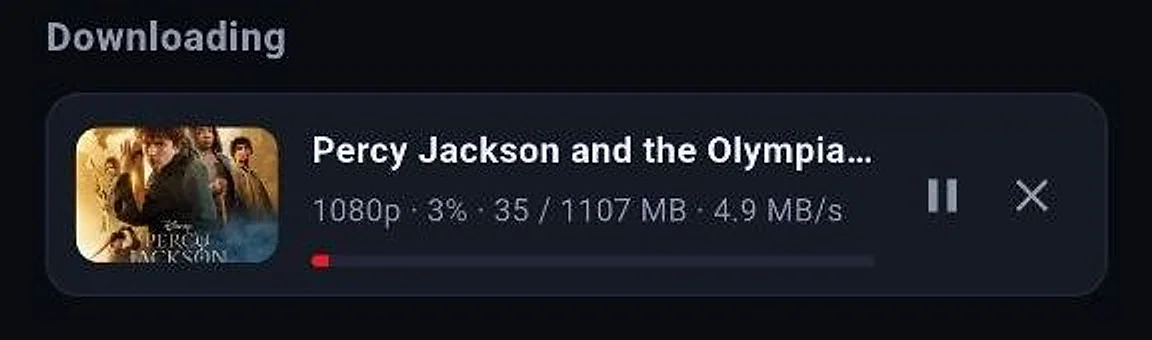
Everything you save lands in the Library tab, under Downloads. While a file is saving you see its progress, how fast it’s coming in, and buttons to pause it or stop and remove it.
Once it finishes, tap it to play in NetMirror’s own player. No internet is needed. If you saved subtitles, you can switch between those languages while it plays. To free up space, tap the bin icon next to the download.
Where NetMirror keeps the files
Downloads are stored inside the app’s own storage, not in your Gallery or the phone’s Download folder. Other apps can’t see or play them, and you won’t find them in a file manager. That has one consequence worth knowing:
- Uninstalling NetMirror, or clearing its storage in Android settings, deletes your downloads.
- Updating doesn’t. When a new version comes out, install the new APK over the old one without uninstalling first, and your downloads stay put. The APK page always has the current version.
When a download stops
Downloads carry on while you move around the app. Android does close apps running in the background to save battery, though, and if it closes NetMirror, a download in progress stops. Open the app again and it will show as Paused: tap Resume and it picks up from where it stopped rather than starting over.
Video links expire after a while. If one expires in the middle of a long download, the app fetches a fresh link by itself, so you don’t need to do anything. If a download says “Failed · tap resume to retry”:
- Tap Resume once more.
- Check your phone has room for the file. The size is on the download.
- Try the other connection, Wi-Fi if you were on mobile data or the other way round, then resume.
- If it keeps failing, stop and remove it, and start it again from the title.
On a phone that’s strict about background apps, keep NetMirror open on screen until a large download finishes.
Downloading on a computer
The web player at net78.cc has a Download button under the video, marked “Download for offline”. It opens a dialog where you pick the episodes (with Select all for a full season), the quality, the audio language and the subtitles. It shows the total size before you press Start download.
Everything else about watching in a browser is in NetMirror on Windows and Mac.