
JioHotstar, Netflix and Prime Video tabs in NetMirror
Browse NetMirror by the platform a film or series came from.

If you came looking for “NetMirror JioHotstar”, here is the short answer. NetMirror has a tab for JioHotstar, and others for Netflix, Prime Video, SonyLIV, Zee5, MX Player and Crunchyroll. Each one shows the films and series in NetMirror that were first released on that platform.
What the platform tabs are
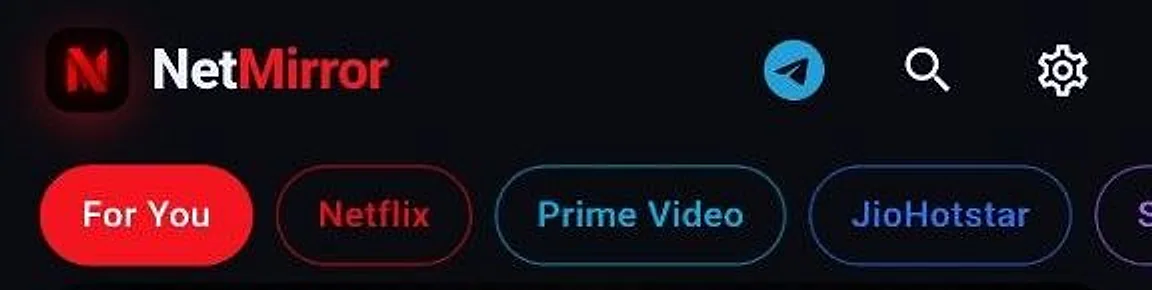
Most people remember a show by where it came out: “that JioHotstar series”, “the new Netflix film”. The tabs let you browse NetMirror the same way. Open the app and they run along the top of Home, after For You, which is the normal home feed:
- Netflix
- Prime Video
- JioHotstar
- SonyLIV
- Zee5
- MX Player
- Crunchyroll
NetMirror is a separate app. It isn’t part of JioHotstar, Netflix or any of these services, and you never sign in with an account from them. A tab only lists titles that are in NetMirror’s own library, so it won’t match the platform’s catalogue one for one.
Using a tab in the app
- Open Home and swipe the tab row to find the platform you want.
- Tap it, for example JioHotstar. The header turns that platform’s colour and reads “Popular on JioHotstar”, above a grid of posters.
- Use the switch beside that heading to flip between Movies and Series.
- Tap a poster to open the title, where you can play it, add it to My List or download it.
- Tap For You to go back to the usual Home feed.
The tabs are part of the app on phones and tablets. The TV version keeps a simpler home screen without them, so on a TV use Search or Browse in the sidebar instead.
The same idea on the web player
On net78.cc the platforms are buttons above the big banner: Trending, Latest Release, Netflix, Prime Video, JioHotstar, SonyLIV, Crunchyroll, Kids and MX Player. Pick JioHotstar and the banner and the rows under it switch to titles from that platform. The list differs a little from the app’s: the web adds Trending, Latest Release and Kids, and has no Zee5 button.

The buttons work the same in any browser, so this is also how you browse by platform on an iPhone, a laptop or a Samsung or LG TV. Watching NetMirror on a computer covers the rest of the web player.
What the tabs leave out
The tabs hold films and series only. Live broadcasts, such as the cricket JioHotstar streams, aren’t in them. NetMirror’s live channels are a separate part of the app, described in our Live TV guide.
A tab also shows what NetMirror has at that moment. A series that premiered on JioHotstar this week may not be in the JioHotstar tab yet, and a film can have several audio versions, some of them dubbed. To pick Hindi or another language for a title, see Hindi audio and subtitles in NetMirror.
Can’t find a title in a tab?
If a tab says there’s nothing from that platform right now, flip the Movies and Series switch or try another platform, as the message suggests. Search looks through the whole library, not one tab, so it’s the quicker route when you know the name: tap the magnifying glass at the top of Home and type the title in English, as it’s spelled on the platform.
On the web, use the search box at the top of the home page. If net78.cc itself won’t open, today’s working NetMirror link has the current address.