
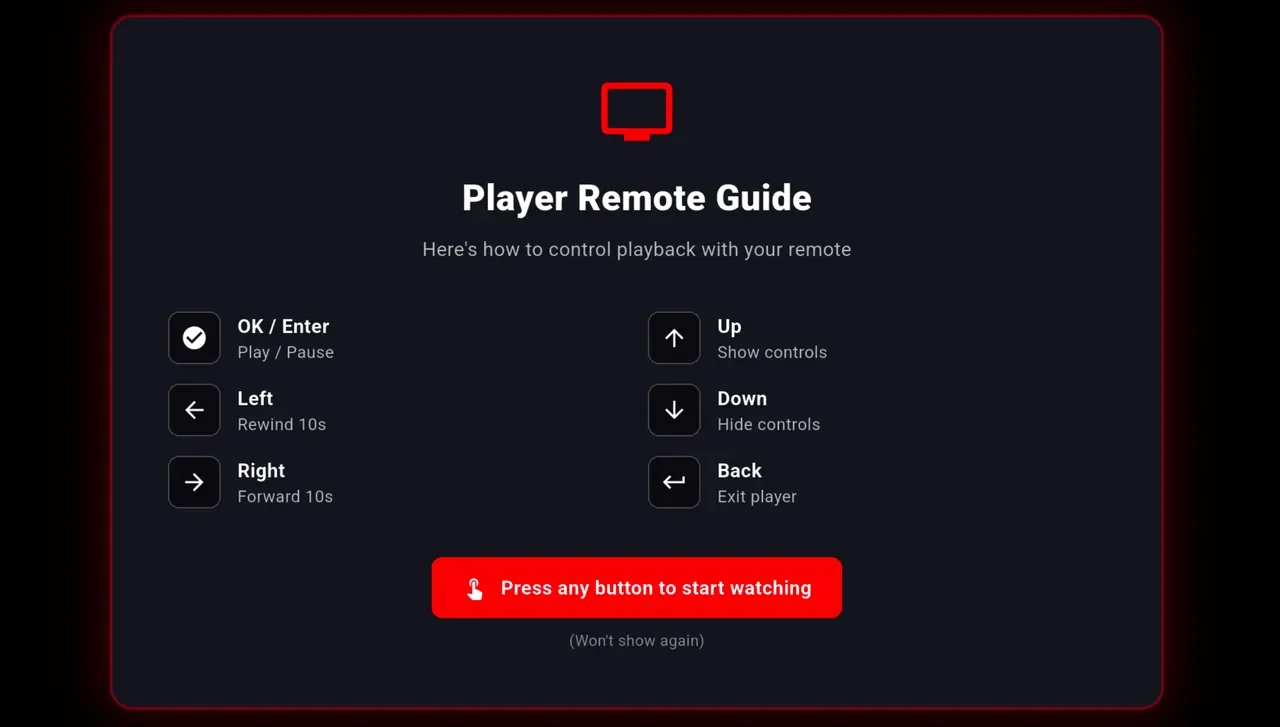
Every button has one job
The first press shows the controls. After that, OK or the play/pause key starts and stops the video, left and right jump 10 seconds, the down arrow opens the menu, and Back takes you out of the player.
The NetMirror app for Android TV, Google TV and Firestick.
In Downloader, type
net78.cc/tv The short link always points to the newest APK. For Samsung or LG, choose the web button.
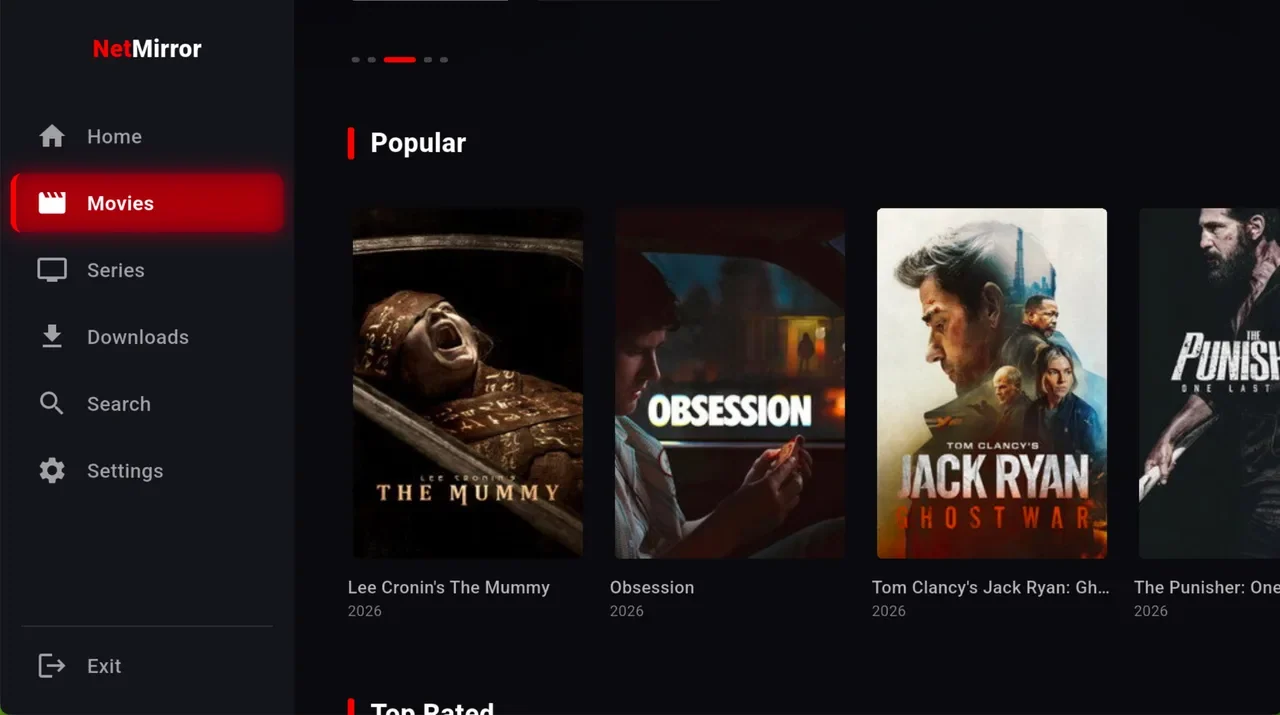
NetMirror TV isn’t a separate app. It’s the same NetMirror APK that runs on phones, and it switches to a TV layout by itself when it starts on a television: big posters, a sidebar you move through with the remote, and a player that answers the D-pad.
There’s no store listing, so you install it with Downloader, a free app that fetches files from a web address. Typing net78.cc/tv once gets you the newest version, and the same address works again whenever an update comes out.
The screenshots come from an earlier release; the text describes the app as it is today.
The first press shows the controls. After that, OK or the play/pause key starts and stops the video, left and right jump 10 seconds, the down arrow opens the menu, and Back takes you out of the player.
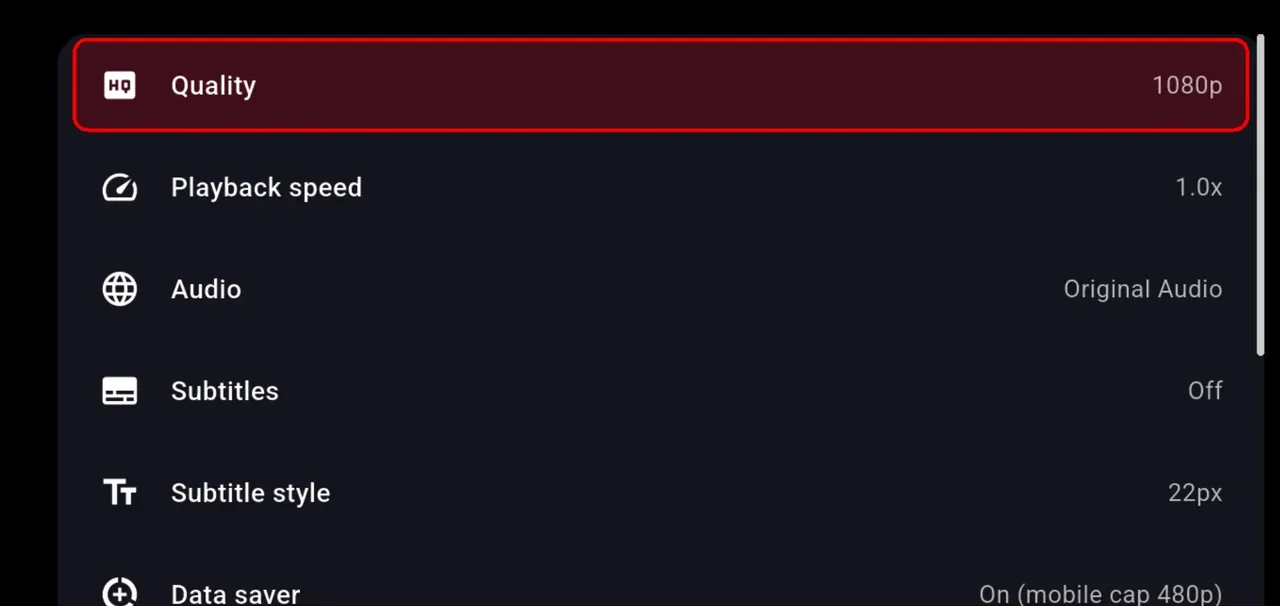
Press down to reach Episodes, Audio & subtitles, Quality up to 1080p, Speed, the screen fit and Next episode, all without leaving the film.
When a title knows where its intro ends, a Skip intro button appears already selected, so a single press of OK jumps past it. Near the end, Next episode works the same way.
Home, Search, Browse, Anime and More. Live TV channels sit under More, next to a link that opens the web version.
Find Downloader in the Amazon Appstore with the search on your Fire TV home screen, and install it. It costs nothing.
In Settings, choose My Fire TV, then Developer options, then Install unknown apps, and turn Downloader on. Can’t see Developer options? Go to My Fire TV, About, and click on the device name seven times until it says you’re a developer.
Select the address box, type the link exactly as shown and choose Go.
net78.cc/tv
Choose Install when the installer appears, then Open. Downloader offers to delete the leftover file afterwards, which frees some space.
Open the Play Store on the TV, search for Downloader and install it.
Open the app, enter the link below in its address box and choose Go.
net78.cc/tv
The first time, the TV asks whether Downloader may install apps. Allow it, or switch it on under Settings, Apps, Security & restrictions, Unknown sources. Menu names differ a little between brands.
It appears with your other apps and opens in its TV layout straight away.
These TVs can’t install Android apps. Open the TV’s web browser, go to net78.cc and play with Server 2. The NetMirror Web guide covers the rest.
Repeat the short link in Downloader. Installing on top of the current app keeps your settings, because every build is signed with the same key.
The short link lives on the main web address. If that address moves, the link moves with it: add /tv to the new main address listed below.
Watching on a phone instead? See NetMirror for Android or NetMirror for iPhone.
Common questions from people setting it up on a TV.
Something else? Ask in our Telegram channel.
No. Install it with the free Downloader app instead: type net78.cc/tv and it fetches the APK straight from us.
Use the short address net78.cc/tv in place of a code. Type it into Downloader’s address box, and it always points to the newest version.
Any Fire TV device on Fire OS 6 or newer, which is built on Android 7.1. The very first Fire TV Sticks still on Fire OS 5 are too old for the app.
Open Downloader and type net78.cc/tv again. The new version installs over the old one, and your settings stay where they were.
Not as an app, because those TVs don’t run Android. Their built-in web browser can open net78.cc, the web player, instead.
The 12-hour ad that phones see before the app opens is skipped on TVs, since it needs a browser you can’t use comfortably with a remote.