
Hindi audio and subtitles in NetMirror
Set your language once, switch it mid-film, and style subtitles.

Plenty of films and series in NetMirror come with more than one soundtrack: the original, plus dubs in Hindi, Tamil, Telugu and other languages. This guide shows how to make the one you want play by default, how to change it for a single title, and how to set subtitles up so they’re easy to read.
Make Hindi (or any language) the default
The first time you open the app it asks you to pick your language: Original, Hindi, English, Tamil, Telugu, Malayalam or Kannada. From then on, whenever a title has that language, the app chooses it for you. When a title doesn’t have it, you hear the original soundtrack.
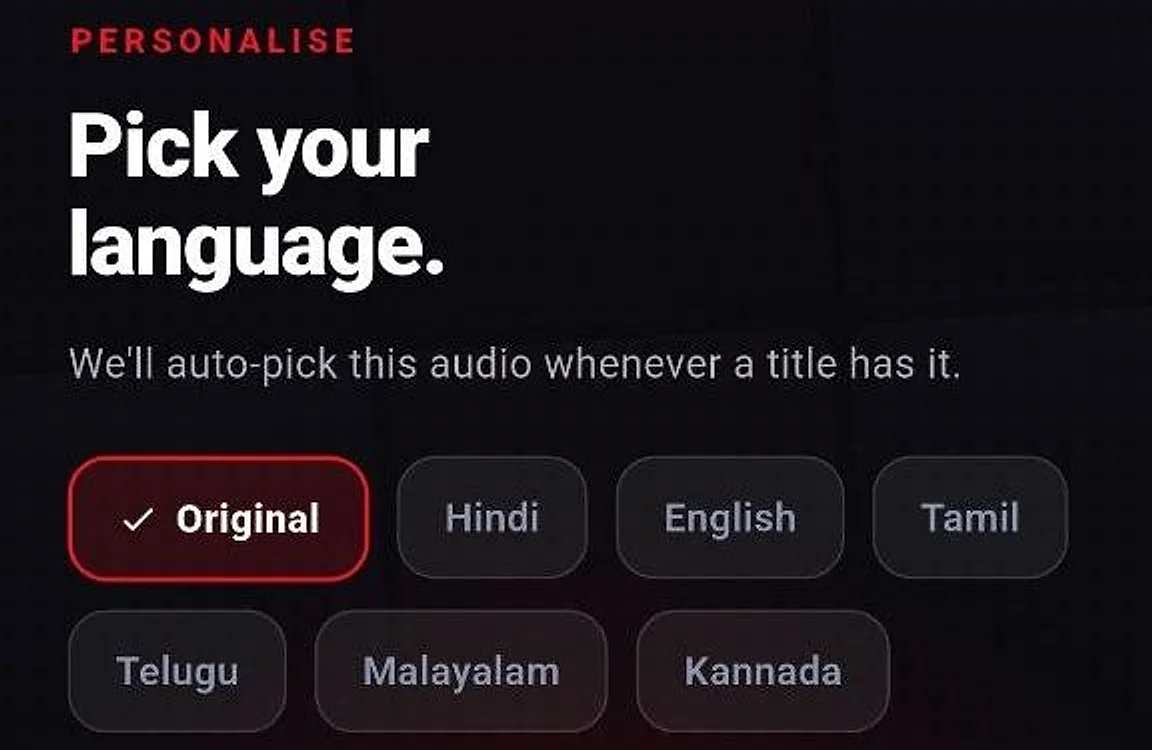
Skipped that screen, or changed your mind? Tap the gear at the top of Home to open Settings, then under Playback tap Preferred audio language. The list there is longer and also has Spanish, French, Portuguese and Arabic. Pick Original if you’d rather always hear a film as it was made.
Change the audio for one title
A title’s page has an Audio language row listing every version NetMirror has for it, such as English (Original), Hindi or French. Tap the one you want before you press Play.
Already watching? Tap the screen to bring up the controls and open Audio & Subtitles from the control bar. Choose Audio lists the soundtracks and Subtitles lists the languages. Whatever you pick takes effect straight away.
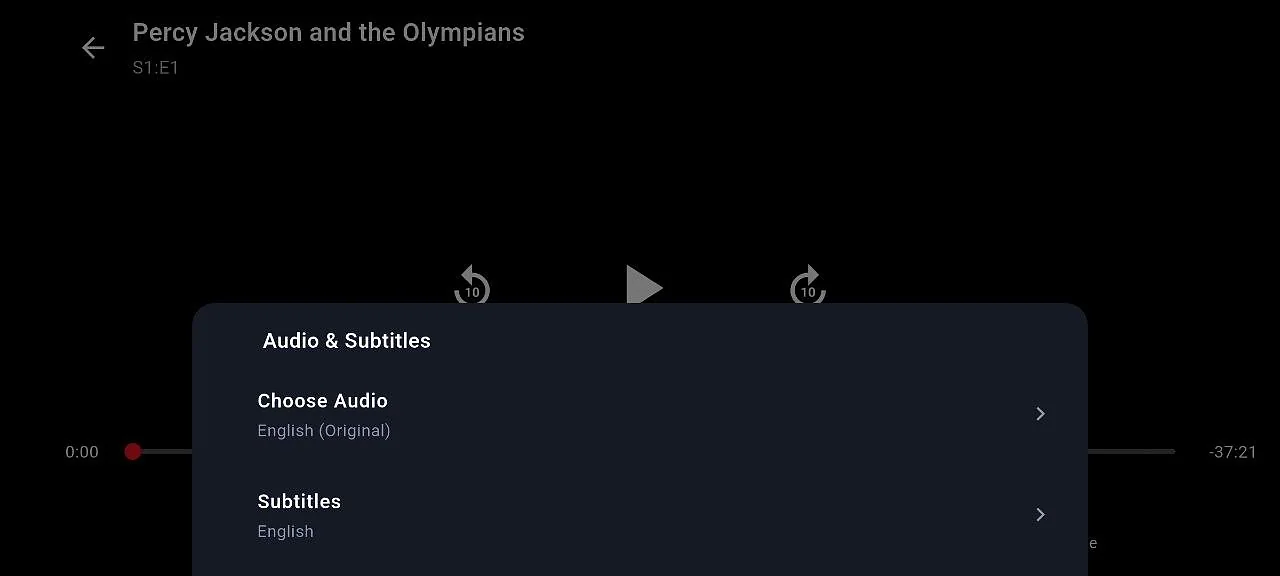
Hindi isn’t on every title. If it’s not in the Audio language row, NetMirror doesn’t have a Hindi version of that title at the moment, and no setting will add one. Downloads work the same way: the Download sheet asks which audio to save, as covered in downloading movies to watch offline.
Subtitles you can actually read
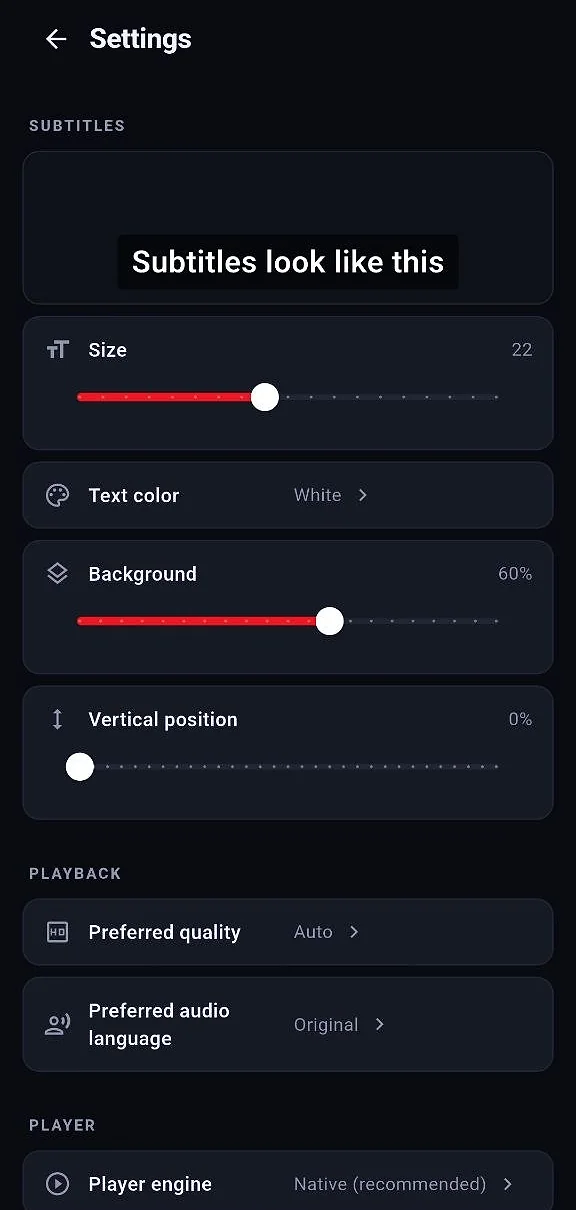
Turn subtitles on or off, and pick their language, under Subtitles in the player’s Audio & Subtitles menu. How they look is up to you in Settings, under Subtitles, where a preview line (“Subtitles look like this”) updates as you change things:
- Size: a slider. Go bigger for a TV across the room.
- Text color: white or yellow. Yellow stands out better in snowy or bright scenes.
- Background: a slider for the dark box behind the words, from none at all to fully solid.
- Vertical position: raises subtitles from the bottom edge, up to about a third of the way. Handy when they cover a film’s own on-screen text, or when a TV cuts off the edge of the picture.
Audio and subtitles on the web player
On net78.cc, a menu under the player starts out showing “Default”. Open it to see the other versions of that title. Ones ending in “dub”, like “Hindi dub”, have dubbed audio; ones ending in “sub” come with subtitles in that language. Choosing one loads that version. Next to it, the HQ audio button switches to a higher-quality soundtrack when there is one.
To browse only titles that have a dub, open the Hindi Dubbed category on the web player’s home page. There are Tamil Dubbed and Telugu Dubbed categories too. NetMirror on iPhone shows the same menus on a phone screen.
Playing the wrong language? Try these
- The app plays English when you picked Hindi
- Open Audio & Subtitles in the player, tap Choose Audio and pick Hindi again. Then check Settings, Playback, Preferred audio language, so the next title starts in Hindi too.
- The web player plays the original soundtrack
- Choose “Hindi dub” from the menu under the player rather than Default. If the sound still doesn’t change, switch to the other server and pick Hindi dub once more.
- Picture and sound drift apart, or playback stutters in the app
- Go to Settings, Player, Player engine and try Compatibility mode. If it makes no difference, set it back to Native (recommended).
- Subtitles sit too low on a TV
- Raise the Vertical position slider in Settings, under Subtitles, until the whole line shows.