
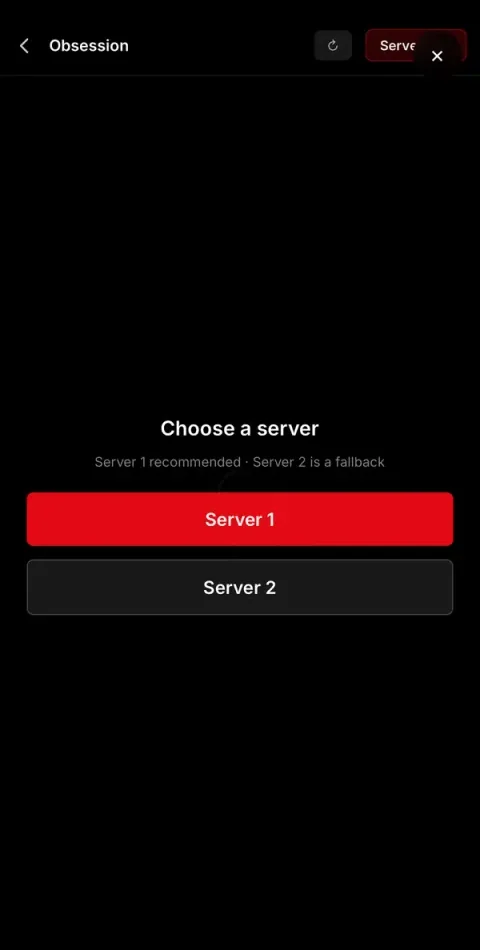
Pick a server, then play
Every title asks which server to use. On iPhone and iPad choose Server 2: it plays in Safari with nothing extra. Server 1 needs a browser extension, which Safari on iPhone can’t run.
Free movies and series on iPhone and iPad, right in Safari.
Both addresses checked .
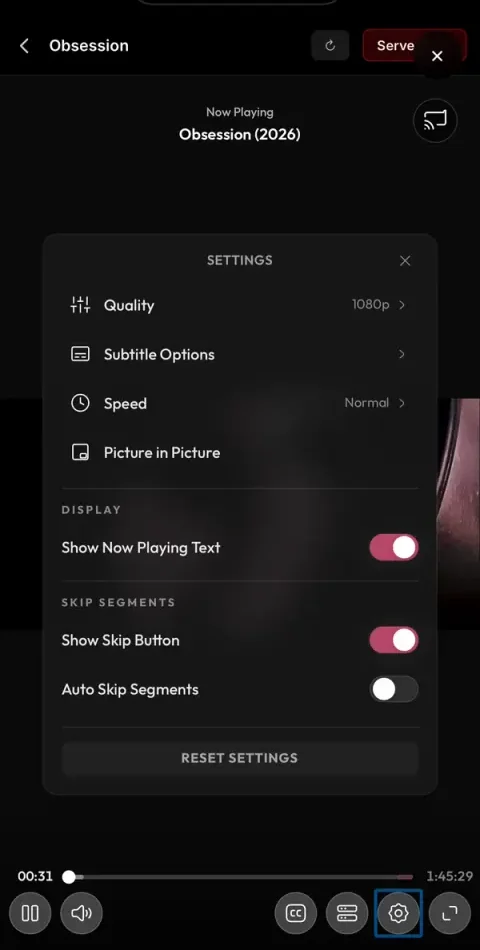
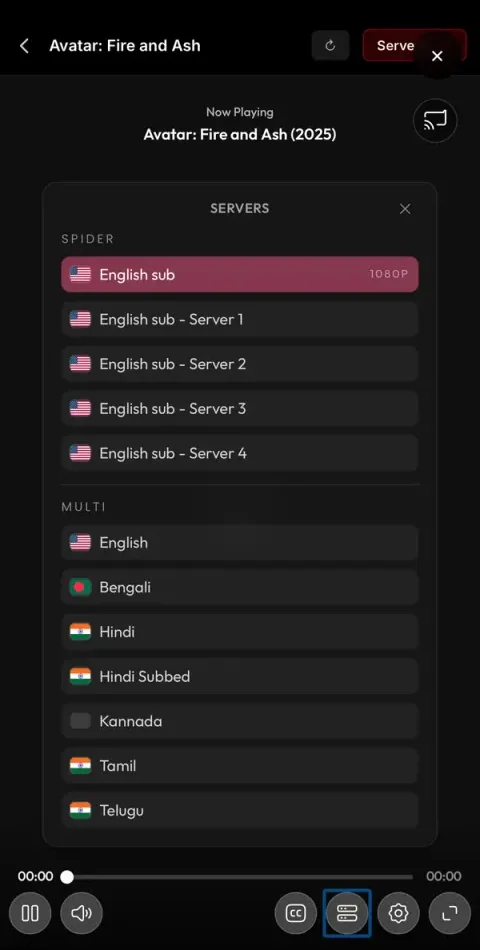
NetMirror for iOS is the NetMirror web player, made to feel at home on iPhone and iPad. There’s no App Store listing and no file to install. You open the web address in Safari, add it to your Home Screen once, and from then on NetMirror opens from its own icon, full screen, like any other app.
Inside is the same library people watch on Android and on a computer: movies and web series from many platforms, Indian-language audio on many titles, subtitles in many languages, and quality up to 1080p, all of it free.
Screens from the web player on an iPhone.
Every title asks which server to use. On iPhone and iPad choose Server 2: it plays in Safari with nothing extra. Server 1 needs a browser extension, which Safari on iPhone can’t run.
Many titles come in several language versions, such as Hindi, Tamil, Telugu, Bengali and Kannada next to English, listed right inside the player.
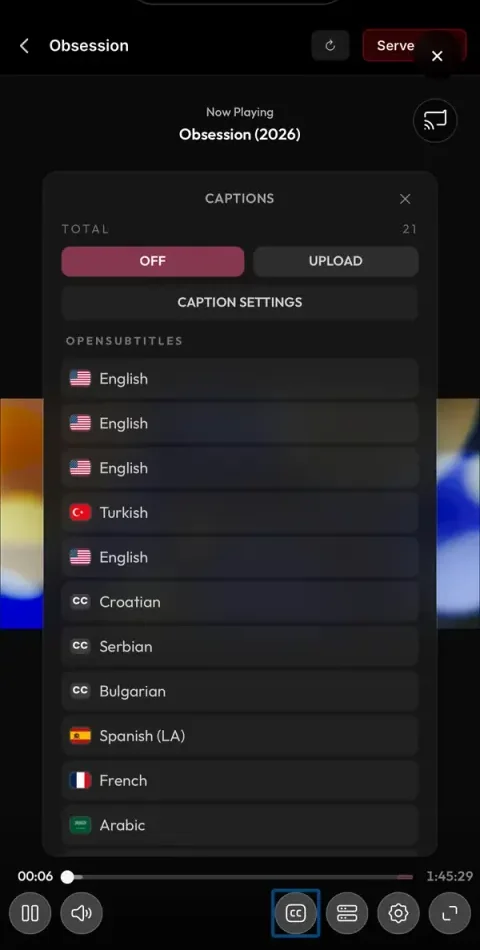
Choose from subtitles in many languages, change how they look in Caption settings, or upload a subtitle file of your own.
The settings menu sets quality up to 1080p and playback speed, turns on picture-in-picture so a film keeps playing over other apps, and can show a skip button or skip segments for you.
Started from the Home Screen, NetMirror fills the whole screen with no Safari address bar or tabs, so the player gets more room.
Type the address into Safari’s address bar, or tap the button below on your iPhone.
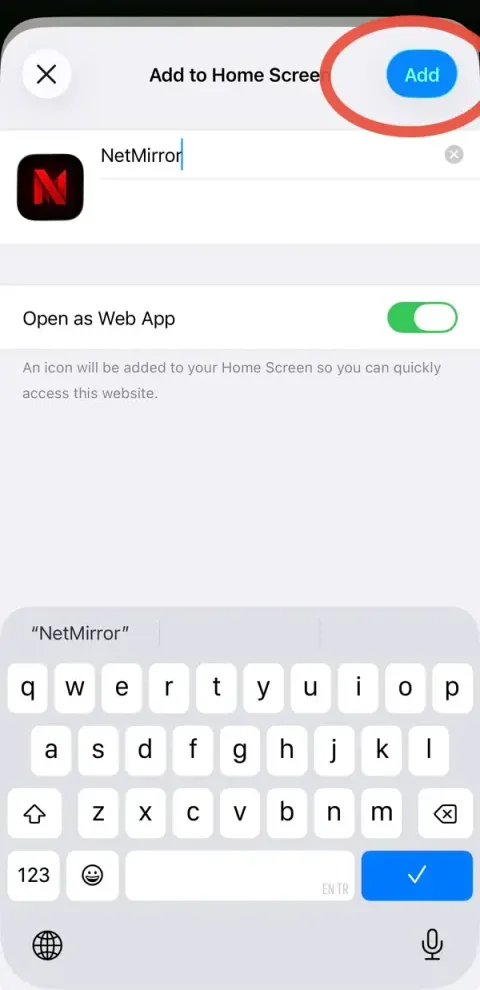
Open net78.ccThe Share button is the square with an arrow, at the bottom of Safari on iPhone and at the top on iPad. Scroll the menu a little to find Add to Home Screen.
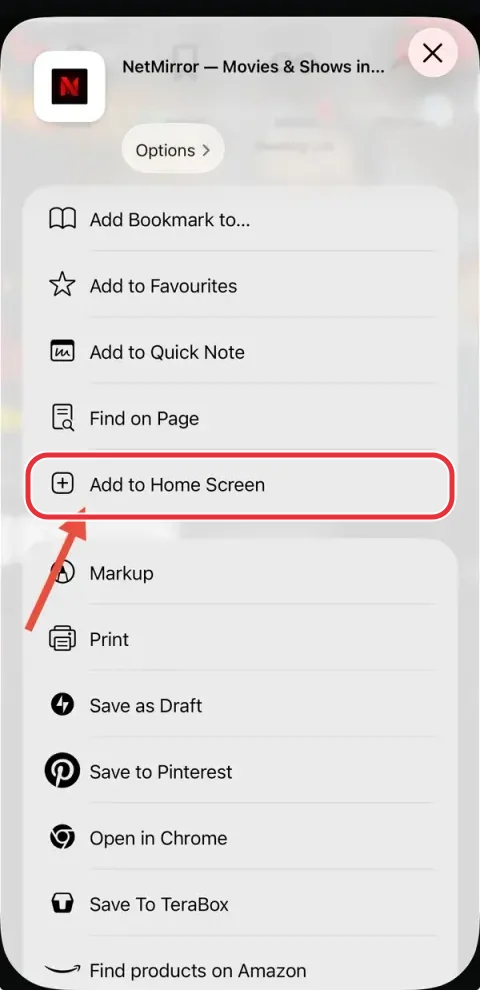
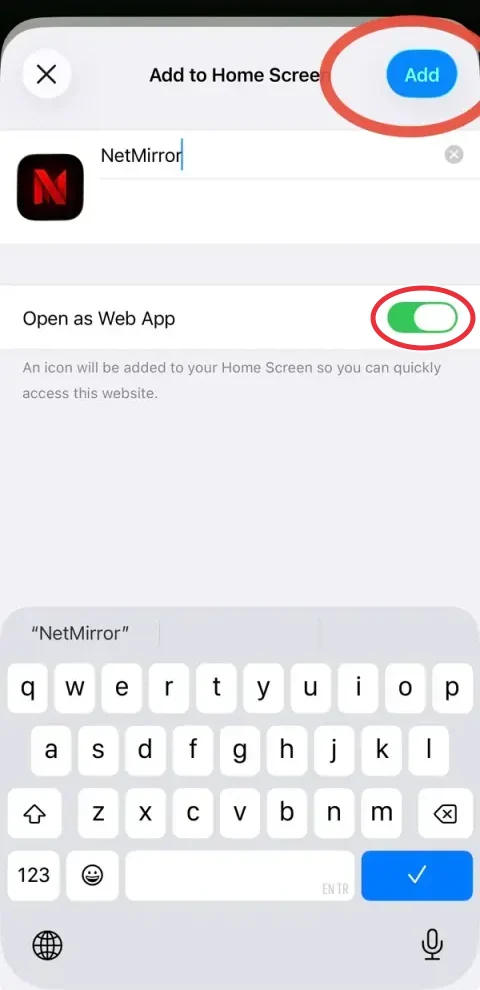
Newer versions of iOS show an Open as Web App switch: keep it on so NetMirror opens full screen. Older versions show only the Add button.
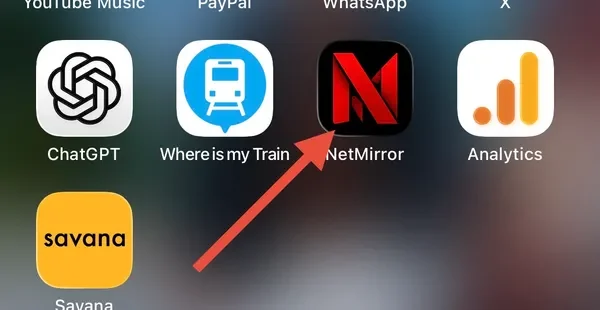
The NetMirror icon now sits on your Home Screen. Tap it whenever you want to watch.
Browse the home rows or tap search, then open a film or a series. For a series, pick the season and the episode.
When the player asks which server to use, tap Server 2. If a title doesn’t start, open the source list and try another source.
CC opens subtitles. The list button shows the sources and language versions. The gear opens quality, speed and picture-in-picture. The last button goes full screen.
Everything works the same way. The Share button is at the top of Safari, next to the address bar, and the bigger screen leaves room for the episode list beside the player.
net78.cc opens and plays in Chrome too. For the Home Screen icon, Safari is the simplest route, and it’s the one shown above.
The web player sometimes moves to a new address when an old one gets blocked. These are the addresses that work today. When it moves, delete the old Home Screen icon and add the new address the same way.
On a computer, see NetMirror Web for PC and Mac. For Android or a TV, see NetMirror on every device.
What iPhone and iPad owners ask before they start.
Something else? Ask in our Telegram channel.
No. NetMirror for iOS is the web player: you open net78.cc in Safari instead of installing anything. The Home Screen steps on this page turn it into an icon you can tap.
We don’t make one. NetMirror on iPhone and iPad runs only as the web player. An IPA, a configuration profile or a “trust this developer” prompt that claims to be NetMirror comes from someone else, so skip it.
No. There’s nothing to sideload and no setting to change. Safari is all you need.
It costs nothing. net78.cc needs no account; ads on the page cover the running costs. net77.cc plays too, once you’ve signed in; the login guide shows how.
Yes. The steps match the iPhone ones; only the Share button moves to the top of the screen.
No. A Home Screen web app runs inside Safari like any website, so it can’t open your photos, contacts, messages or files. If you also use Android, the Android app’s permission list shows what that app can access.